Users & Roles
Settings → Users is where a Tenant Admin manages team members, their roles, and their access to projects.
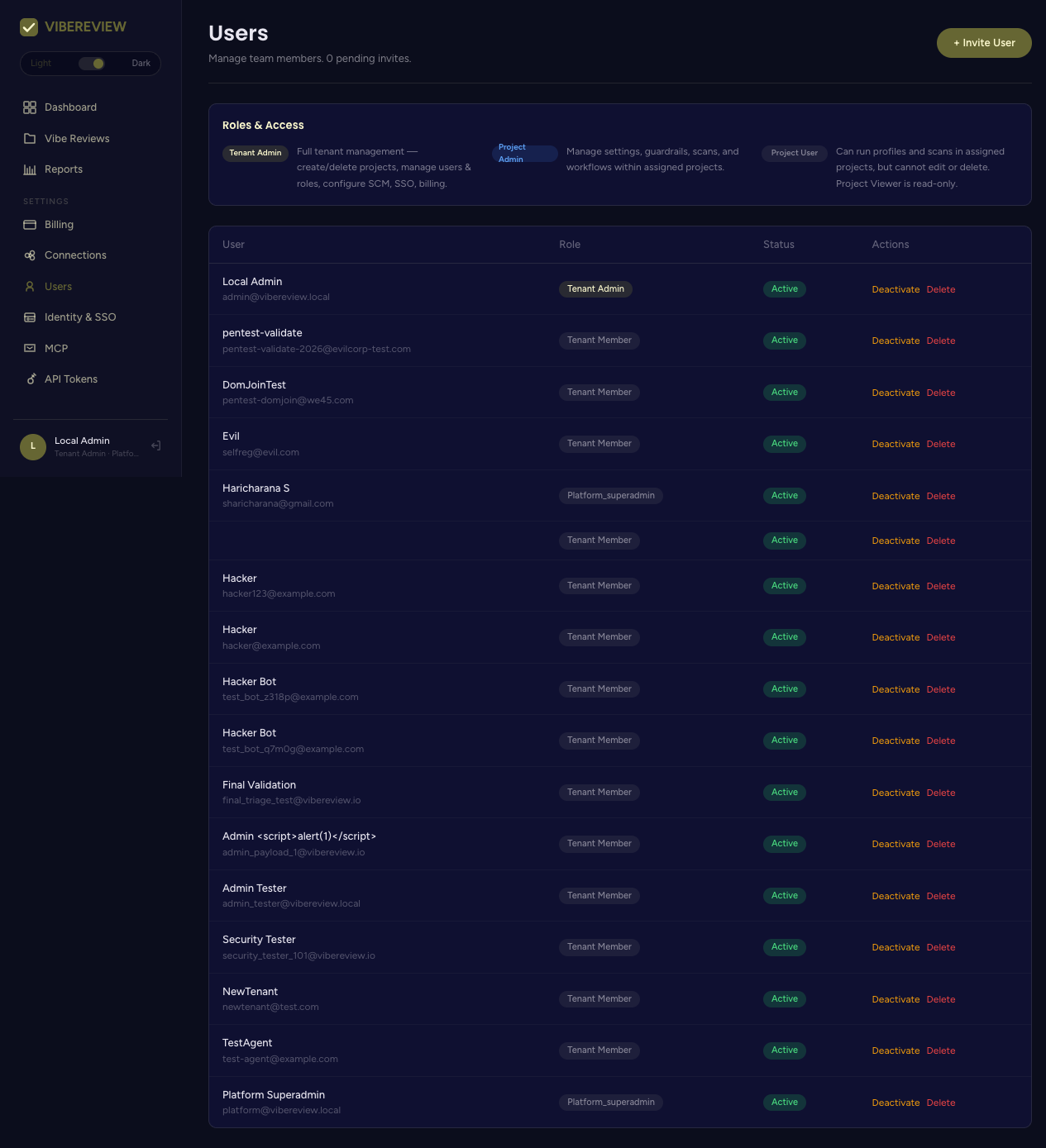
The user list
Each member is listed with their name/email, role, and status, plus per-user Deactivate and Delete actions. The header shows how many invites are pending.
Inviting a user
Click + Invite User to open the invite form, enter the email, pick a role, and (for project-scoped roles) the projects they should access.
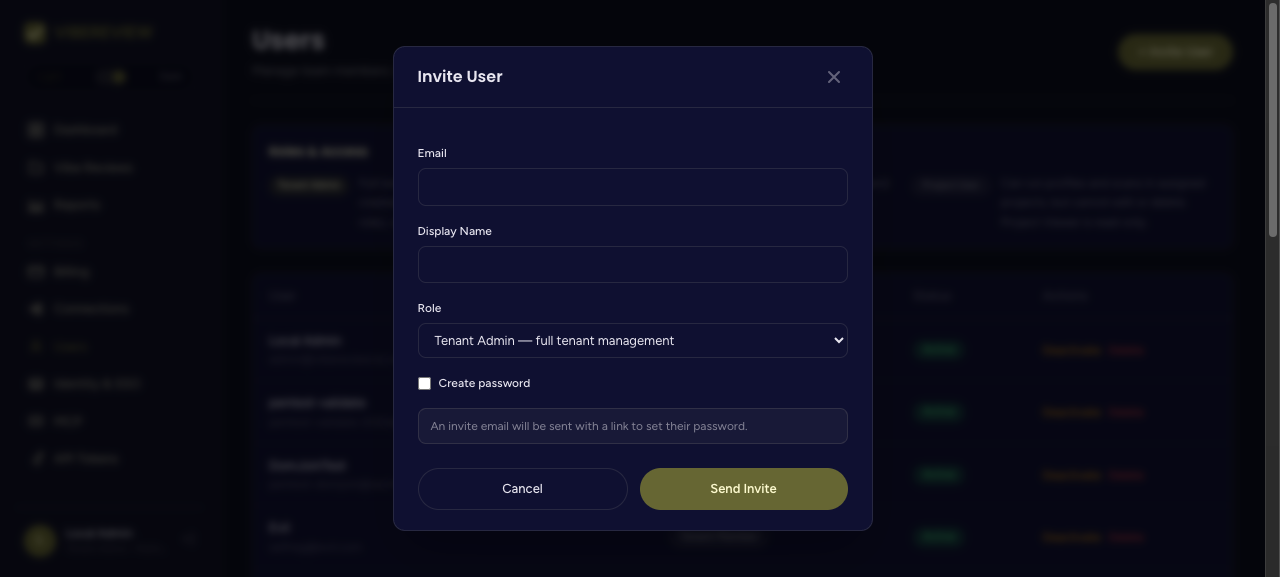
Roles & access
VibeReview separates tenant-level roles from project-level roles.
Tenant roles
| Role | Access |
|---|---|
| Tenant Admin | Full tenant management. |
| Tenant Member | Baseline tenant access. |
| Tenant Viewer | Read-only tenant access. |
Project roles
| Role | Access |
|---|---|
| Project Admin | Manage assigned projects. |
| Project User | Run profiles and scans in assigned projects, but cannot edit or delete. |
| Project Viewer | Read-only access to assigned projects. |
Project-scoped roles are assigned per project, so you can give a developer Project User on the repositories they work on while keeping them out of others. The account used throughout this guide is a Tenant Admin · Platform Superadmin, which has full visibility across the tenant.
Managing existing members
- Deactivate suspends a member without deleting their history.
- Delete removes the member.
Grant the narrowest role that lets someone do their job — for example, Project User for developers who run scans, reserving Tenant Admin for the few who manage connections, billing, and identity.